Licensing
joinXS Recorder supports online and offline licensing. Use demo mode to evaluate the app without activating a subscription.
When using online licensing, you can be logged in on only one device at the same time. When using offline licensing, the license is bound to the specific hardware it was issued for. In both cases, the license is time-limited to your subscription period.
Online licensing
Sign in with your easydcp.com account on the login dialog. The application is unlocked according to the subscription associated with that account.
If the internet connection drops while using an online license, joinXS Recorder blocks further use until the connection returns. A recording already in progress is not stopped, but the NMOS receiver node is taken down while the connection is unavailable.
To log out, open Settings > License > Log out and confirm. Then restart the application as requested. Acknowledging the restart notice does not restart the app automatically. Cancelling the confirmation keeps you signed in.
Offline licensing
Use offline licensing for a device that isn't connected to the internet:
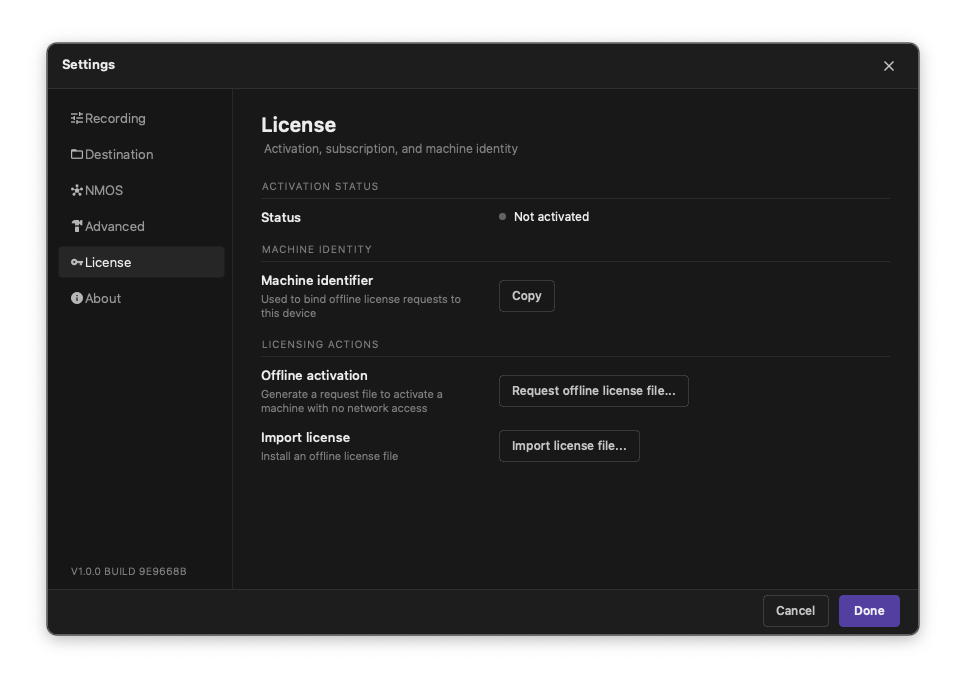
- Open Settings > License > Request offline license file.
- Save the generated HTML file to a location of your choice.
- Open that HTML file in a browser on a device connected to the internet, and submit it to easydcp.com.
- You'll receive an offline license file (
*.joinXS) in return.
Load the offline license file either by dragging it onto the login dialog at startup, or via Settings > License > Import license file. The import dialog accepts .joinXS files and .zip license archives. Import is disabled while using an online license; log out and restart first to switch licensing modes. After import, check the license status.
For a valid offline license, View license file opens the installed license text and provides a copy action. Treat the license text as sensitive information.
To remove a local license, choose Delete installed license, confirm deletion, then restart when requested. Cancelling the confirmation leaves the license installed.
License expiry
When an online or offline license expires, the NMOS receiver node is taken down, the same as when an online license loses its internet connection.
Demo mode
By choosing Start Demo instead of signing in, joinXS Recorder launches in demo mode. Demo mode is meant for evaluating the product: each recording is limited to 30 seconds, and the preview image carries a watermark. The recording stops when the limit is reached.
For installation and sign-in instructions, see Getting started.