Sources
Choose a source through NMOS discovery or enter RTP endpoints manually. You can record video only, video with separate audio, or audio only.
Selecting discovered streams
Use Available streams to select sources advertised through NMOS (Networked Media Open Specifications).
- Choose the appropriate Listen interface.
- Turn on NMOS discovery.
- Open Available streams.
- Select the video source and, if required, a separate audio source. You can select at most one video and one audio stream.
- Check the selected source summary, then set the label and destination before selecting Start recording.
The table shows source status, transport, label, URI, and properties. Unavailable sources cannot be selected. Incompatible streams are either hidden or shown as disabled, depending on NMOS settings.
If no sources appear, check the interface, sender, and registry configuration. Turning off NMOS discovery disables automatic discovery; use Custom RTP / SDP for manual endpoints.
Changing the listen interface restarts an enabled NMOS node. Configure the interface and registry before starting a capture.
Entering a custom RTP source
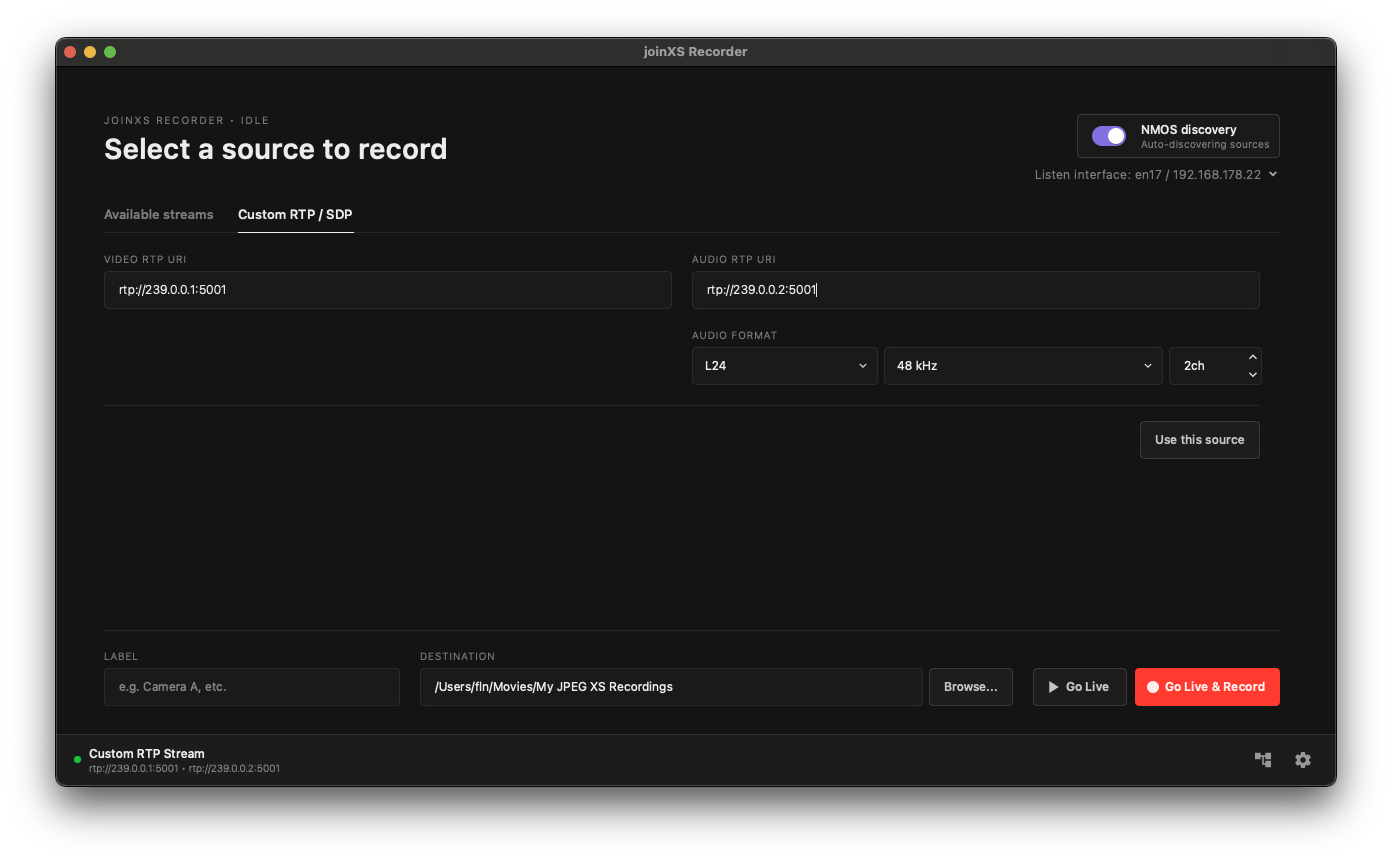
Use Custom RTP / SDP when you know the sender's RTP endpoints. Obtain the receiving address, port, and audio format from the sender or your network administrator.
- Open Custom RTP / SDP.
- Enter the video endpoint in the video input, for example
rtp://239.100.0.1:5004. - If recording audio, enter its separate endpoint in the audio input, for example
rtp://239.100.0.2:5006. - Set the audio encoding, sample rate, and channel count to match the sender.
- Select Use this source.
- Set the label and destination, then select Start recording.
The example multicast endpoints illustrate the required URI structure; replace them with the endpoints supplied for your network. Each URI needs a host address and a port.
For video-only recording, leave audio empty. For audio-only recording, leave video empty. The bare placeholder rtp:// is treated as an unused input. Every endpoint you supply must be valid.
| Audio setting | Available values |
|---|---|
| Encoding | L24 (24-bit PCM) or L16 (16-bit PCM) |
| Sample rate | 48 kHz or 96 kHz |
| Channels | 1-16 |
Confirm source edits
Use this source confirms the current inputs. If you change an endpoint or audio format afterward, select Use this source again before starting. Switching source tabs clears the selection; confirm or select your source again.
Despite the tab's name, the SDP Browse buttons are currently disabled. Use RTP endpoint entry for this workflow.
In the current version, Use this source can remain enabled if one endpoint is valid and the other is malformed. Starting then shows an Invalid source configuration banner. Correct the malformed input, or clear it if that stream is not needed, and confirm the source again.
For capture controls and file information, continue to Recording. If the source cannot be used, see Troubleshooting.