Recording
Monitor the active capture, check source and file information, and stop recording when finished. For source selection and the initial Start action, see Getting started.
Monitoring and stopping a recording
During recording, the source-selection form is replaced by the capture view. The video canvas shows the decoded preview when video is present and preview decoding is enabled.
| Control or display | Purpose |
|---|---|
| Stop recording | Stops capture and returns to source selection. |
| Back to sources | Stops capture, unloads the current source, and returns to source selection without a confirmation prompt. |
| Show overlay / Hide overlay | Shows or hides the on-screen source summary, recording time, and media properties. This does not stop capture. |
| Show stream info / Hide stream info | Shows or hides detailed source and recording information. |
| Settings | Opens settings; opening the dialog does not itself stop capture. |
| Recording time display | Shows recording duration or running time. With no incoming media, it can remain at 00:00:00. |
Audio-only recording has no video preview and displays an audio-only notice. Turning preview decode cadence off also disables the video preview, but not recording.
The displayed level bars are not a calibrated audio-level measurement. Do not use them to verify incoming audio or set levels.
Starting again creates a new recording file; it does not append to the previous capture. There is no pause/resume control. Stop recording before closing the application.
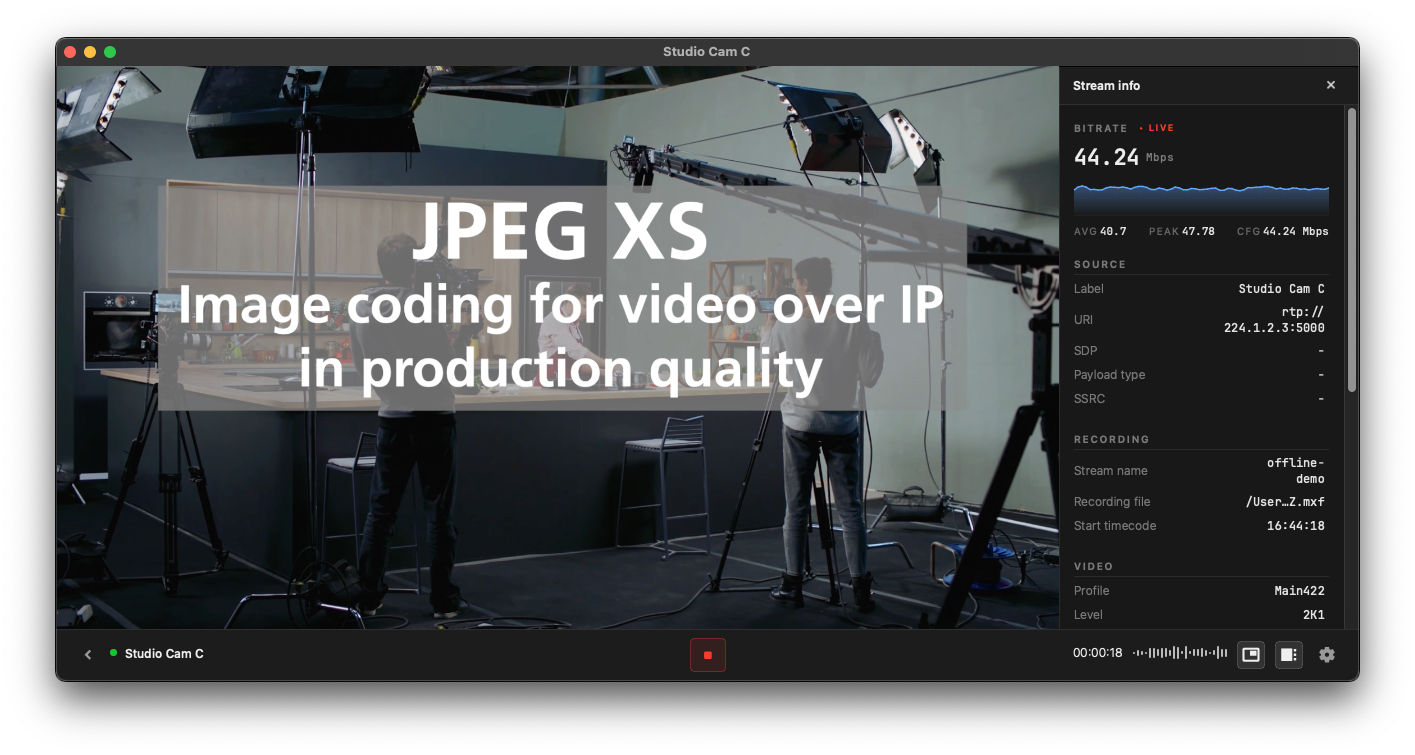
Checking stream information
During capture, select Show stream info. Close the panel with its close button, or use Hide stream info. Scroll to see additional sections.
| Section | Information shown |
|---|---|
| Bitrate | Reported bitrate, trend chart, average, peak, and configured value when available |
| Source | Source label and URI |
| Recording | Stream name, recording file path, and start timecode |
| Video | JPEG XS profile, level, sublevel, resolution, frame rate, interlacing, and bit depth |
| Pixel format | Pixel format and chroma sampling |
| Color | Matrix, range, transfer function, and primaries |
| Audio | Audio URI, codec, sample rate, channel count, and bitrate |
Sections appear only when the relevant media information is available. Missing values are shown as -. Hover over an abbreviated recording path to see the full path.
Bitrate and format information can be derived from source or pipeline metadata; they are not independent confirmation that packets have arrived.
For filename and storage options, see Destination settings. For missing media or unexpected warnings, see Troubleshooting.